How To Make Your PC Sound Dramatically Better
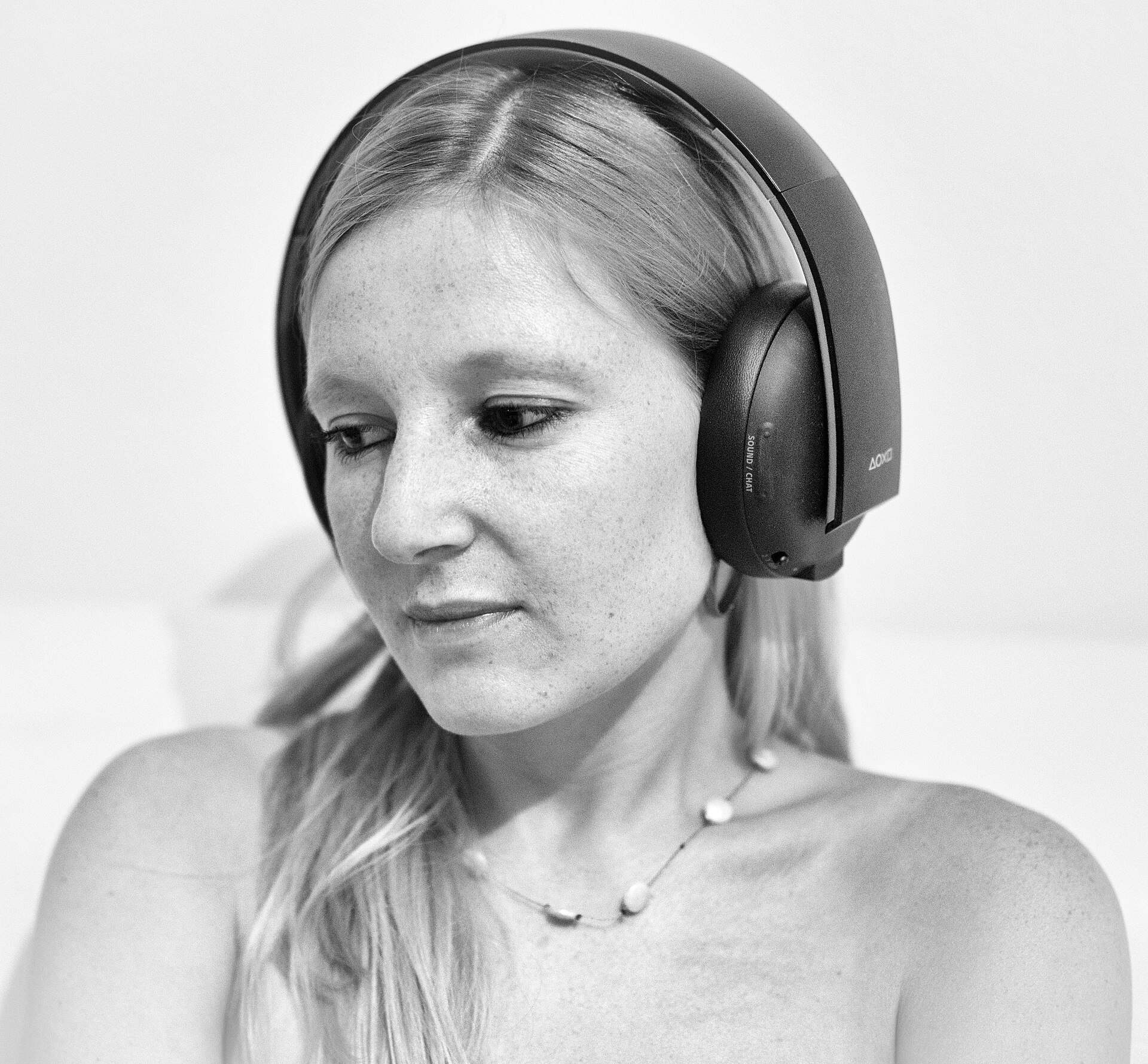
Most computers sound worse than they should. Laptop speakers are thin and quiet, cheap headphones flatten music, and films often bury dialogue under background noise. The hardware gets the blame, but in many cases the real problem is that Windows sends out an unprocessed signal and leaves your ears to cope with the result.
Why PC audio sounds flat by default
Windows treats audio as a neutral pipe: what an app produces is what you hear. That sounds honest, but small speakers and budget headphones have uneven frequency responses, so bass disappears, treble turns harsh and quiet details are lost. Studios compensate for this when they master recordings; your living room or laptop gets no such help. Digital processing can rebalance the sound for the equipment you actually use, which is why the difference is often startling.
One of the best-known tools for this is FxSound, a free enhancer for Windows with polished presets for music, movies, games and voice, plus manual controls when you want them.
What an audio enhancer actually does
An enhancer sits between your apps and your speakers, processing the signal in real time. It can lift quiet dialogue, add warmth and clarity, widen the stereo image and apply gentle compression so that soft and loud passages sit comfortably together. Presets tuned for music, films, games and voice make this accessible without audio engineering knowledge, while manual controls over bass, fidelity and ambience let keen listeners shape the sound precisely.
Everyday moments where it matters
Think of a film where whispered lines vanish under the score, a podcast recorded a little too quietly, or a video call where a colleague seems to mumble. In games, clearer directional sound helps you place footsteps and effects; in music, well-judged enhancement restores body that small speakers steal. These are small frustrations you may have stopped noticing — until the processed version shows you what you were missing.
You can download it from fxsound.org and hear the difference on your own speakers or headphones within minutes of installing.
Presets versus doing it yourself
Most people are happiest starting with a preset matched to what they are doing, then nudging a slider or two. Enhancement should serve the content: films benefit from dialogue clarity, games from surround and presence, and music from fidelity and a touch of bass. The best tools let you save your own profiles per device, so your headphones and your speakers each get the treatment they need without constant adjustment.
Getting set up in minutes
Unlike hardware upgrades, software enhancement needs no tools, no cables and no shopping around. You install the program, choose it as your output, pick a preset and listen. Because it works system-wide, every app benefits at once — streaming services, browsers, calls and games — rather than only those with their own equaliser settings buried in a menu.
Quick tips for better sound today
- Start from the preset closest to your activity, then adjust one control at a time.
- Use a dialogue or voice preset for calls and films where speech matters most.
- Keep separate profiles for headphones and speakers; they need different treatment.
- If sound feels tiring, reduce the processing slightly rather than switching it off.
Before you replace your speakers or headphones, try processing. A good enhancer costs nothing to test and often reveals that your equipment was capable of far better sound all along.